Mortal Shell II PC Crash and Stutter Fix: DLSS, Shader Cache, and Settings That Actually Help
Crashing on launch or hitching every time you enter a fog bank? We fix Mortal Shell II's UE5 stutter, D3D device loss, and out-of-video-memory errors with launch options, shader cache, and a tested settings matrix.
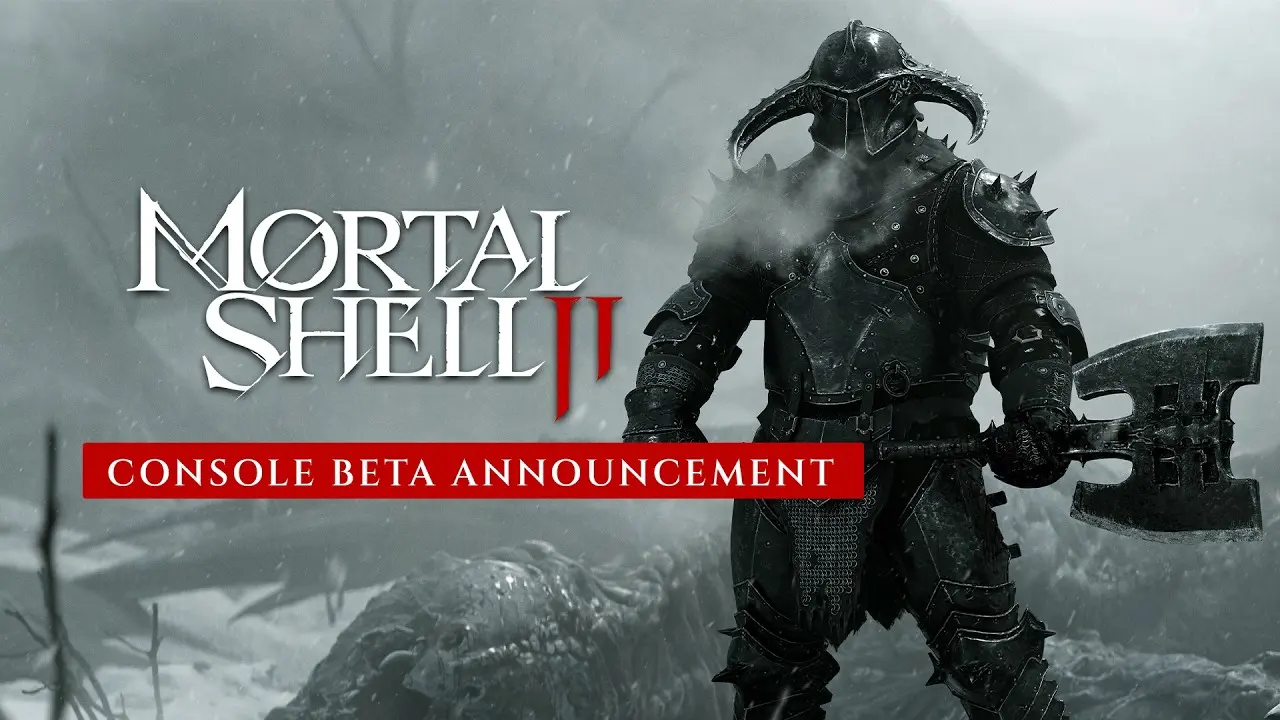
Mortal Shell II PC Crash and Stutter Fix: DLSS, Shader Cache, and Settings That Actually Help
Mortal Shell II runs on Unreal Engine 5, and like most UE5 Soulslikes it punishes a weak frame-time more than a weak average FPS. A hitch during a boss tell is a death, not a number on a chart. This guide fixes the day-one crashes, the shader-compilation stutter, and the memory-leak force-close, then gives you a settings matrix tuned to your GPU.
Table of Contents
- Patch Status: What Changed After Launch
- Baseline Check Before You Touch Settings
- Launch Options and Windows Tweaks That Stop Crashes
- In-Game Settings Matrix and Per-GPU Recommendations
- Decoding Fatal Error Codes and the Memory Leak
Patch Status: What Changed After Launch
This guide started as day-one triage for the 2026-08-20 release. Before you apply any fix below, update — a meaningful share of the launch complaints were patched out from under us, and two settings changes affect the advice in this article directly.
- Week 1 Update (Aug 29, PC). Frame generation now activates after the game finishes loading instead of during startup, and NVIDIA support for it was expanded beyond the launch-day list. The update also added a Geometry Budgets toggle — off by default — which trades some geometry detail for lower VRAM use; if you sit at or under 8 GB VRAM, this is now the first knob to touch, before you start butchering textures.
- Sept 5 update. Beyond the audio pass (black-market ambience, music transitions), it carried a large batch of combat, UI, and crash fixes — so several force-close and device-lost reports from launch week are expected to be gone on a fully updated build. It also introduced the optional experimental adaptive difficulty, which is a gameplay setting, not a performance one, and needs no tweaking here.
- Current status as of this rewrite (2026-09-23): no patch newer than Sept 5 has been confirmed, and the studio has not published numeric version strings for any of these updates — community shorthand is “Week 1 Update (Aug 29)” and “Sept 5”. Ignore guides citing a specific v-number for the fixes below.
If you are still crashing on a fully patched build, the launch-option and shader-cache work below is still the right sequence — but re-test after every driver or game update before stacking three more tweaks on top.
Baseline Check Before You Touch Settings
Confirm the rig meets the floor. Mortal Shell II is noticeably heavier than the 2020 original.
| Component | Minimum (verified) |
|---|---|
| OS | Windows 10/11 64-bit |
| CPU | Intel Core i7-10700K / AMD Ryzen 5 3600 |
| RAM | 16 GB (32 GB preferred) |
| GPU | RTX 2060 SUPER / Radeon RX 6600, 8 GB VRAM |
| API | DirectX 12 |
| Storage | ~70 GB free on an SSD (strongly recommended) |
An HDD will stream poorly and cause exactly the hitches you are trying to fix; move the install to an NVMe or SATA SSD first.
Launch Options and Windows Tweaks That Stop Crashes
Step 1 — force a stable renderer. In Steam, right-click Mortal Shell II, Properties, General, Launch Options, and enter -dx11. If the game now boots, the crash was DX12 initialization. -UseFixedTimeStep is the alternative launch flag that stabilizes physics and render clock pacing and is widely reported to cut hitching.
Step 2 — fix the shader cache. For NVIDIA, open the Control Panel, Manage 3D Settings, Global, and set Shader Cache Size to 10 GB or Unlimited; reboot. For AMD, open Adrenalin, Graphics, Advanced, and Reset Shader Cache. After a driver or game update, also clear the DirectX Shader Cache via Windows Disk Cleanup. The first post-clear launch is longer by design.
Step 3 — disable Control Flow Guard for the exe. Windows Exploit Protection is notorious for frametime spikes in UE5 titles. Add the Mortal Shell II executable (usually SteamLibrary\steamapps\common\Mortal Shell 2\MortalShell2\Binaries\Win64) under Program Settings, override Control Flow Guard, and set it to Off. Reboot. Only do this for the game exe, not system-wide.
Step 4 — verify game files. In Steam, Properties, Installed Files, Verify integrity of game files. Corrupted shaders or assets produce black-screen crashes right after the splash.
In-Game Settings Matrix and Per-GPU Recommendations
The rule: stable frame delivery beats peak FPS. Use exclusive fullscreen, and do not use standard TAA — it blurs the character when you Harden. Prefer DLSS (RTX) or FSR 2.2 (AMD) on Quality or Balanced.
| Setting | Recommended | Approx. FPS Impact | Why |
|---|---|---|---|
| Volumetric Fog / Clouds | Medium | ~11–15% GPU saved | Biggest single win, negligible visual loss |
| Shadow Quality | High (Medium on weak GPUs) | +9% (Medium) | Ultra shadows cost 15–20% for debris you never see |
| Motion Blur | Off | +2% | Hides boss tells; turn off for readability |
| Depth of Field | Off | low | Obscures enemy telegraphs |
| Texture Quality | High (Medium at 6GB VRAM) | +4% | High is fine at 8GB+; Ultra can OOM |
| Anti-Aliasing | DLSS/FSR Quality | +5% | Sharpness + big FPS vs native |
| Frame Generation | Off until base FPS is stable | — | Only helps if native base is already ~55–60. Post Week 1 (Aug 29) it engages only after loading finishes, and NVIDIA support is broader than at launch |
| Geometry Budgets | On if you have ≤ 8 GB VRAM | saves VRAM | New toggle from the Week 1 Update; off by default, trades geometry detail for memory headroom — try it before dropping textures |
Per-GPU guidance:
- RTX 5090 / 4090: native High/Ultra with DLSS 4.5 Balanced is comfortable; multi-frame generation is viable at high refresh.
- RTX 4060 / 3060 class: DLSS Quality or Balanced, Volumetric Fog Medium, Shadows Medium/High. CheckFPS models a 3050 at ~60 FPS Ultra jumping to ~118 FPS with DLSS Quality on recommended settings.
- RX 6600 (minimum spec): FSR 2.2 Quality, Volumetric Fog Medium, Shadows Medium, Textures High. Cap framerate to your refresh to avoid thermal throttle.
- Any GPU: keep 10–15% SSD free, set Windows Power Plan to High Performance, and GPU power mode to Prefer Maximum Performance to stop downclock micro-stutter.
Decoding Fatal Error Codes and the Memory Leak
“Out of Video Memory trying to allocate a rendering resource” — your GPU is choking on textures. Turn the Geometry Budgets toggle on first (new in the Week 1 Update, off by default) to claw back VRAM headroom; if it persists, lower Texture Quality from Ultra to High and close hardware-accelerated Discord and Chrome.
“Unreal Engine is exiting due to D3D device being lost” — unstable overclock or driver crash. Remove any MSI Afterburner undervolt/overclock, then perform a clean driver install with DDU in Safe Mode.
Known UE5 memory leak on long sessions. Even with 32 GB RAM, extended play can force-close the game. Manually assign a static pagefile: Advanced System Settings → Performance → Advanced → Virtual Memory → uncheck auto, select the SSD, Custom size Initial 16384 MB / Maximum 32768 MB, Set, reboot.
If stutter persists after all of the above, update to the latest Game Ready / Adrenalin driver (PSO precaching works best on current drivers) and re-test one change at a time.
Frequently Asked Questions
Why does Mortal Shell II crash on launch on PC?
Usually a DirectX 12 initialization or corrupted shader cache problem. Add -dx11 to the Steam launch options first; if it boots, the issue is the normal DX12 path. Also clear the NVIDIA DXCache/GLCache or reset the AMD shader cache, then let the game rebuild shaders on a longer first launch.
What does 'D3D device lost' mean and how do I fix it?
It points to an unstable GPU driver or an overclock. Return any undervolt/overclock to default in MSI Afterburner, then do a clean driver install with DDU in Windows Safe Mode. The error is reproducible across UE5 titles, so the fix is driver-level.
Is DLSS 4.5 real in Mortal Shell II?
Yes. Performance outlets tested DLSS 4.5 (super resolution plus frame generation) on RTX 50-series hardware at launch, and the in-game frame generation toggle is present. The Week 1 Update (Aug 29) changed frame generation to activate only after the game finishes loading, and expanded NVIDIA GPU support for it beyond the launch-day list. Multi-frame generation still needs RTX 50-series hardware; older RTX cards use standard DLSS Quality/Balanced.
Out of video memory on a card with 8GB VRAM?
Drop Texture Quality from Ultra to High and close hardware-accelerated Discord and Chrome before launching. Ultra textures at 4K can exceed 8GB and force asset swapping to system RAM, which causes catastrophic stutter.
About the author

Editor-in-Chief
Jack Cao is the founder and Editor-in-Chief of GameGuidesBox. He has been writing practical game guides for over a decade, specializing in action RPGs, extraction shooters, and competitive FPS. Every guide he signs is playtested first-hand: his logged test time includes 47 hours across two Crimson Desert playthroughs with DPS verification, 180 hours building a full Windrose settlement, and 45 hours across six Yunyun Syndrome endings runs. Favorite games include Titanfall 2, Baldur's Gate 3, Metro, PUBG, and CS2.
You may also like
Mortal Shell II How to Respec: Mether's Severance Guide
Mether's Severance turns Mortal Shell II's Glimpse commits into a refundable loop. Here is the exact respec route via Merrick and Zhirelle, what the refund covers, and when it is worth spending Coin.
Mortal Shell II: Every Playable Shell, Ability Tree, and Unlock Location
Confused about which Shell to bond first? We mapped all the playable Shells — the eight permanent bodies plus prologue-only Harros — with their full ability trees and exact unlock routes.
Mortal Shell II All 44 Bosses: Locations, Beacons, and Drops Checklist
Struggling to track down every grotesque in Fainweald? We mapped all 44 boss encounters, their nearest Beacon, and exactly what each one drops. Click to unlock the full checklist.
Comments