Crimson Desert Controls Guide: Stop Blaming Yourself, Fix Your Keybinds
Getting wrecked by Crimson Desert's control scheme and on the verge of keyboard-punching? Here's a full breakdown of remapping options and mechanical tricks to take you from 'what is this garbage' to actually functioning.
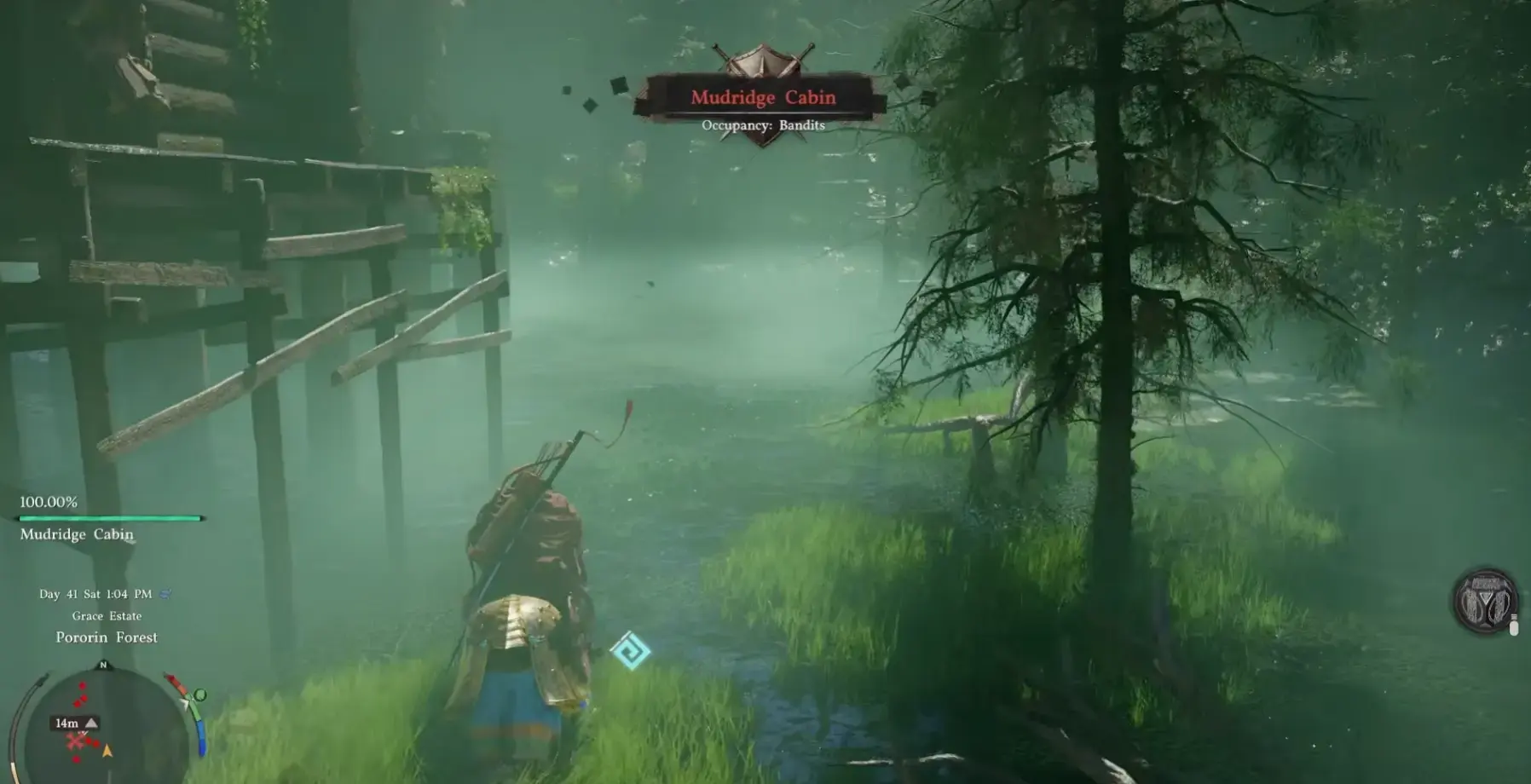
Let’s be real — Crimson Desert’s control scheme is actively fighting you right now.
This isn’t a “just stick with it” pep talk. We’re skipping straight to the fixes.
First, Accept This One Truth
Crimson Desert’s controls are not a bug. They’re a feature.
Pearl Abyss spent five years building this action system. They know how to make simple controls — they chose not to. This is intentional design, for better or worse.
So don’t wait for the game to change. You adapt, or you refund. Let’s go with option one.
Basic Keybind Fixes
Combat Stance
The default melee setup has a few genuinely bad decisions baked in:
-
Heavy attack is bound to Shift instead of right-click — this is the single biggest reason combat feels wrong for most players. Go into Settings, remap heavy attack to right-click and light attack to left-click. Night and day difference.
-
Dodge and block are too far apart — remap dodge to Space and block to Ctrl for a more natural hand position.
-
Lock-on defaults to Tab — in a game where you’re constantly switching targets mid-fight, Tab is a terrible choice. If your mouse has side buttons, use one of those instead.
Gathering and Interaction
This game handles interactions differently from most RPGs, and nobody warns you about it:
- It’s not just tap E to interact — it’s hold E to pull up the full action menu.
- Quick gather requires you to press Q first to open the radial shortcut wheel.
- Item pickup has a 1-second delay — this is intentional, not input lag. Stop blaming your hardware.
Advanced Tricks
Eliminating Accidental Inputs
Settings → Accessibility → Disable "Continuous Action Confirmation"This one setting is responsible for half the “I accidentally killed an NPC” stories you see online. With it off, any lethal action requires a second confirmation prompt. Turn it off immediately.
Movement Mode Switching
The game has two distinct movement modes: Default Mode and Action Mode.
- Default Mode — built for exploration, works well with auto-pathing
- Action Mode — built for combat, tighter directional input and attack registration
Recommended approach: Use Default Mode for quests and open-world traversal, then manually swap to Action Mode when combat starts. The toggle is ~ (the key above Tab).
Performance Optimization (Because Lag on Top of Bad Controls is Unbearable)
Based on community testing, these settings give the best performance-to-visual tradeoff:
| Setting | Recommended | Why |
|---|---|---|
| Texture Quality | High | Low VRAM causes hitching during loads |
| Shadows | Medium | High shadows tank framerates noticeably |
| Volumetric Fog | Off | Looks nice, barely matters in practice |
| Post Processing | Low | One of the biggest FPS killers in the game |
Intel Arc Users
Genuinely sorry, but there’s no fix here.
Pearl Abyss has officially stated that Intel Arc GPUs are unsupported at launch and recommended affected users request a refund. Don’t hold your breath for a driver patch — it’s not coming anytime soon.
Getting-Started Roadmap
If you’d rather not spend your first ten hours confused:
- First 2 hours — ignore the main quest, just walk around and get muscle memory going
- Hours 3–5 — do side quests in the Hernand region; the onboarding there is friendlier than the main story
- Hours 5–10 — by now the control logic should be starting to click
- 10+ hours — if it still feels wrong, that’s a design problem, not a you problem
Frequently Asked Questions
The lock-on keeps targeting the wrong enemy in group fights. Any fix?
Double-tap the lock-on key to cycle lock priority. In Settings, change 'Lock-On Priority' from 'By Threat' to 'By Distance.'
Is there any way to speed up gathering animations?
No official speedup exists. However, using Ctrl + the corresponding shortcut key lets you skip most of the animation.
My horse randomly dismounts me mid-ride. What's happening?
You're accidentally hitting the interact key. Go to Settings and change 'Mount Interaction' to require a long press instead of a tap.
About the author
Assistant Editor
Editor at gameguidesbox.com, a professional data-driven specialist primarily engaged in information gathering and editing/proofreading, serving as a versatile information expert.
You may also like
Crimson Desert Patch Turns Reviews Around After Rocky Launch
Pearl Abyss fixes critical bugs and adds quality-of-life features, pushing Steam reviews from 'Mixed' to 'Mostly Positive' within two weeks.
Crimson Desert's Mixed Launch Reveals the Uncomfortable Truth About Hype Economics
Five million sales and a 30% stock crash happened at the same time. That's not a paradox — it's exactly what happens when years of unchecked hype collides with a game that's good but not transcendent.
Crimson Desert PC Optimization Guide: How to Actually Get Good Performance on Mid-Range Hardware
The BlackSpace Engine is beautiful and unforgiving. Here's how to stop your GPU from crying and actually enjoy Crimson Desert without dropping to single-digit frames in open areas.
Comments