Crimson Desert PC Optimization Guide: How to Actually Get Good Performance on Mid-Range Hardware
The BlackSpace Engine is beautiful and unforgiving. Here's how to stop your GPU from crying and actually enjoy Crimson Desert without dropping to single-digit frames in open areas.
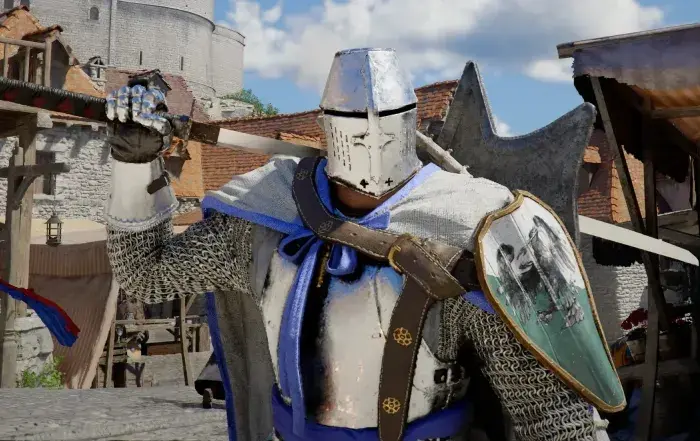
Crimson Desert is gorgeous. It’s also the kind of game that will look at your RTX 3080 and laugh. Pearl Abyss built the BlackSpace Engine specifically for this game, and the result is a visual showcase that, on launch, had a significant portion of players questioning whether their hardware was actually the problem or if the game was just cooked.
Spoiler: it’s a bit of both. But there’s a lot you can do on your end.
This guide is for mid-range hardware specifically — RTX 3060 to RTX 4070, RX 6700 to RX 7800 XT territory. If you’re on a 4090, close this tab, you don’t need it.
Minimum vs. Recommended — What Pearl Abyss Said vs. Reality
Pearl Abyss published these specs:
Minimum
- CPU: Intel Core i5-10600K / AMD Ryzen 5 5600X
- GPU: NVIDIA GTX 1080 / AMD RX 5700
- RAM: 16 GB
- Storage: 70 GB SSD
Recommended
- CPU: Intel Core i7-12700K / AMD Ryzen 7 5800X3D
- GPU: NVIDIA RTX 3080 / AMD RX 6800 XT
- RAM: 32 GB
- Storage: NVMe SSD
The recommended specs will get you a stable 60fps at 1080p High settings. Minimum spec gets you into the game. Whether you’ll enjoy it is another conversation.
The Settings That Actually Matter
Not all settings hit your framerate equally. These are the ones worth adjusting first:
1. Shadows — Drop This First
Shadow quality is the single biggest performance killer in Crimson Desert. Go from Ultra to High and you’ll recover 10-15% framerate in most outdoor scenes. The visual difference at normal play distance is marginal. Drop to Medium if you’re still struggling — the degradation only becomes noticeable in close cutscene shots.
2. Screen Space Reflections — Turn It Off Entirely
SSR in Crimson Desert looks great on water surfaces and wet stone. It also tanks performance in any area with reflective geometry. Unless water visuals are your specific thing, disable it. The game’s baked reflections hold up fine.
3. Ambient Occlusion — SSAO, Not HBAO+
Keep ambient occlusion on — it contributes significantly to the game’s grounded visual feel — but switch from HBAO+ to SSAO. You lose some precision in contact shadows. You gain 5-8% performance in dense environments.
4. Draw Distance — Match Your RAM
If you’re on 16 GB RAM, set draw distance to Medium. The BlackSpace Engine loads a massive amount of geometry, and at High/Ultra draw distances on 16 GB systems you’ll hit regular stuttering as assets stream in. 32 GB systems can run Ultra without this issue.
5. Anti-Aliasing — TAA or DLSS/FSR, Skip MSAA
MSAA in this engine is brutally expensive. TAA provides acceptable image quality at minimal cost. If your GPU supports DLSS 3/4 (RTX series) or FSR 3 (most modern AMD cards), use them. Quality mode preserves most of the visual fidelity while recovering 20-40% framerate depending on your card.
Recommended Preset: Mid-Range 1080p Target 60fps
| Setting | Value |
|---|---|
| Resolution | 1920x1080 |
| Shadows | High |
| Textures | High (VRAM permitting) |
| Screen Space Reflections | Off |
| Ambient Occlusion | SSAO |
| Draw Distance | Medium (16GB RAM) / High (32GB RAM) |
| Anti-Aliasing | DLSS Quality / FSR Quality / TAA |
| Motion Blur | Off (personal preference, minor perf gain) |
| Depth of Field | Medium |
| Volumetric Fog | Medium |
| Upscaling | DLSS Quality or FSR Quality |
This configuration typically delivers 55-70fps on RTX 3060/RX 6700 class hardware at 1080p. Expect dips in particularly dense open-world areas.
GPU-Specific Notes
RTX 30 series: Enable DLSS Quality mode. Frame Generation is not available on 30 series, but you’re not missing it at 1080p. Ensure you’re on driver 552.22 or later — earlier drivers had a VRAM management issue with the BlackSpace Engine.
RTX 40 series: Frame Generation (DLSS 3) works here and is worth enabling if you’re targeting 60fps on mid-range cards like the 4060. Latency impact at 60+ base fps is acceptable.
AMD RX 6000/7000 series: FSR 3.1 is your tool. Quality mode is genuinely good at 1080p. Performance mode is blurry but usable if you’re hitting hard framerate walls. Fluid Motion Frames (AMD’s frame gen) is available on RX 7000 — enable it.
The VRAM Situation
Crimson Desert streams high-quality textures aggressively. 8 GB VRAM is technically sufficient at 1080p High textures, but you’ll notice occasional pop-in. 10 GB+ avoids most of these issues. At 1440p Ultra, you want 12 GB minimum.
If you’re seeing stuttering that doesn’t resolve with the settings above, check your VRAM usage in MSI Afterburner or GPU-Z. If it’s consistently at 95%+ capacity, texture quality is your limiting factor.
One Last Thing
The game doesn’t explain half of what it’s doing mechanically, and that includes some performance-adjacent systems like world simulation density. There’s a slider buried in Advanced Graphics settings labeled “World Entity Density” — this controls how many active ambient NPCs, animals, and environmental effects are simulated simultaneously. Drop this from Ultra to High and you’ll see legitimate FPS improvements in town areas where the simulation load is heaviest.
Good luck out there. The game is worth the optimization work. Probably.
March 2026 Known Issues & Fixes
Since launch in March 2026, Crimson Desert has had several notable PC-specific problems. Here’s what we know and how to fix them:
Critical Launch Issues
1. “The Graphics Device Is Currently Not Supported” Error (Intel Arc GPUs)
Issue: Intel Arc GPU owners (including MSI Claw handheld users) receive an error message on launch stating the graphics device is not supported.
Status: Pearl Abyss initially stated there were no plans to support Intel Arc GPUs and directed affected players to request refunds. However, following community backlash, the developer announced on March 20, 2026, that they are “currently working on compatibility and optimization support so that Crimson Desert can also be enjoyed on Intel Arc GPU systems.”
Workaround: None currently available. Intel Arc users must wait for a future patch or request a refund through their platform of purchase.
Source: GameReactor, GamesRadar+
2. Denuvo DRM Crash on Startup
Issue: The game crashes to desktop immediately on launch due to Denuvo anti-tamper software failing to authenticate.
Fix:
- Add
CrimsonDesert.exeto your Windows Defender exclusions list - Temporarily disable third-party antivirus during initial launch
- Ensure your firewall allows the game executable to communicate with Denuvo servers
- Verify game files through Steam/Epic Games Launcher
Why it happens: Denuvo checks your hardware token on first boot. If your security software blocks the executable, the DRM times out and crashes the game.
Source: XMODhub
3. Black Screen on Launch
Issue: Game launches to a black screen with no audio or UI.
Fix:
- Update GPU drivers to the latest version (NVIDIA 552.22+ or AMD Adrenalin 24.3.1+)
- Delete the
GameOption.txtfile inDocuments/Pearl Abyss/Crimson Desert/Settings - Run the game as Administrator
- Disable fullscreen optimizations on
CrimsonDesert.exe
Source: XMODhub
Performance Issues
4. Shader Compilation Stutter
Issue: Severe frame hitching and stuttering, especially during first-time gameplay sessions or after driver updates.
Fix:
- On first launch: Let the game sit on the main menu for 5-10 minutes to allow background shader compilation to complete
- Watch for the progress bar in the bottom-right corner — do not load your save file until it disappears
- If you skipped initial compilation: Clear your GPU shader cache via NVIDIA Control Panel or AMD Adrenalin, then restart the game
- Enable asynchronous compute in
GameOption.txtif using a modern multi-core processor
Why it happens: The BlackSpace Engine compiles shaders on-the-fly when encountering new visual effects. This causes CPU bottlenecks regardless of GPU power.
Note: Shader cache resets after every driver update or major game patch — you’ll need to repeat this process.
Source: XMODhub, PCGamingWiki
5. Out of Memory Error / Memory Leak
Issue: Game crashes with “Out of Memory” error, even on systems with 32GB+ RAM.
Fix:
- Increase your Windows Pagefile size to at least 1.5x your physical RAM
- Lower Texture Quality from Ultra to High or Medium
- Close background applications (especially Chrome, Discord, and other memory-heavy programs)
- Set
r_VirtualTexturePoolSizeto a lower value inGameOption.txt(advanced users only)
Why it happens: The BlackSpace Engine aggressively streams high-quality textures and has a documented memory leak that worsens over extended play sessions.
Source: XMODhub
6. VRAM-Related Pop-In and Stuttering
Issue: Visible texture pop-in and stuttering, especially when moving quickly through the open world.
Fix:
- Reduce Texture Quality if your VRAM usage exceeds 95% (check via MSI Afterburner or GPU-Z)
- Lower Draw Distance from Ultra to High or Medium
- Use DLSS/FSR Quality mode instead of native resolution
- 8GB VRAM is technically sufficient at 1080p High, but 10GB+ is recommended to avoid pop-in
Why it happens: Even at maximum settings, the game’s streaming optimization causes visible pop-in as a trade-off for playability on lower-VRAM hardware.
Source: Notebookcheck
7. Massive Stuttering After Patch (Post-1.00.03)
Issue: Some players reported severe stuttering appearing after the 1.00.03 patch, despite previously stable performance.
Fix:
- Clear shader cache and recompile (see Issue #4)
- Verify game files — some users reported corrupted files post-patch
- Roll back to previous GPU driver version if issue started immediately after driver update
- Check community threads for ongoing discussions — this appears to affect a subset of players
Source: Reddit r/CrimsonDesert
Visual Issues
8. Visual Noise and Artifacts in Indoor Environments
Issue: Grainy visual noise and artifacts, particularly noticeable in indoor areas.
Fix:
- Set Lighting to ‘Cinematic’ or ‘Ultra’ — avoid ‘Max’ setting which worsens noise
- Use DLSS 4.0 instead of DLSS 4.5 — DLSS 4.0 produces less noise
- Run at native resolution or use DLAA/DLSS Quality mode rather than Performance upscaling
- Avoid Ray Reconstruction (NVIDIA) or Ray Regeneration (AMD) — these can introduce additional artifacts and may visually remove rain effects (confirmed bug)
Source: Notebookcheck, Hardware Unboxed
9. Object Pop-In at High Settings
Issue: Noticeable object and geometry pop-in when moving quickly, even at maximum graphics settings.
Fix: Limited — this is an engine-level optimization trade-off. Best results:
- Increase Draw Distance (requires 32GB+ RAM)
- Reduce movement speed in dense areas
- Accept this as a limitation of the current engine build
Source: Notebookcheck
Patch History (March 2026)
Patch 1.00.03 (March 23, 2026)
Key Fixes:
- Fixed issue where settings were not saving correctly after exit
- [PS5/Xbox] Added toggle for 120Hz mode within Settings
- [PS5] Fixed occasional crash when opening the Map menu
- Added Private Storage at Howling Hill Camp for inventory management
- Added additional Abyss Nexus fast-travel points
- Fixed issues blocking quest progression
- Tweaked boss fights and improved combat responsiveness
- Keyboard and mouse control improvements
- Various performance and stability improvements
- Localization fixes
Known Issues Remaining:
- Intel Arc GPU support still pending
- Some players report new stuttering issues post-patch
- Visual noise in indoor environments not fully resolved
Source: VULKK, Game8, Pearl Abyss Official
Patch 1.00.04 (Late March 2026)
Key Fixes:
- Additional control scheme improvements
- Further stability fixes for PC platform
- Addressed some community-reported crash scenarios
Source: eScoreNews
General Troubleshooting Checklist
If you’re experiencing issues not covered above, try these steps in order:
- Verify Game Files — Steam: Properties → Installed Files → Verify integrity; Epic: Library → three dots → Verify
- Update GPU Drivers — Use DDU for clean install if experiencing crashes
- Update Windows — Ensure you’re on the latest Windows 10/11 build
- Install Visual C++ Redistributables — Download from Microsoft’s official site
- Disable Overlays — Turn off Discord, Steam, GeForce Experience overlays
- Run as Administrator — Right-click
CrimsonDesert.exe→ Properties → Compatibility - Check Event Viewer — Windows Event Viewer may show specific crash causes
- Monitor Temperatures — Use HWMonitor or similar to rule out thermal throttling
About the author

Assistant Editor
Editor at gameguidesbox.com, a professional data-driven specialist primarily engaged in information gathering and editing/proofreading, serving as a versatile information expert.
You may also like
Crimson Desert Patch Turns Reviews Around After Rocky Launch
Pearl Abyss fixes critical bugs and adds quality-of-life features, pushing Steam reviews from 'Mixed' to 'Mostly Positive' within two weeks.
Crimson Desert's Mixed Launch Reveals the Uncomfortable Truth About Hype Economics
Five million sales and a 30% stock crash happened at the same time. That's not a paradox — it's exactly what happens when years of unchecked hype collides with a game that's good but not transcendent.
Crimson Desert Abyss Cores Class Priority: Best Core Selection for Each Profession
Tier 3 is the sweet spot for permanent upgrades. This class-by-class breakdown shows S-tier cores for Warrior, Mage, and Ranger builds with exact slot priorities.
Comments