Marathon Crash Fix: Stop Losing Your Gear
Losing expensive kits to crashes? We've compiled every working fix for Marathon crashes, loadout recovery methods, and prevention tricks to keep your gear safe.
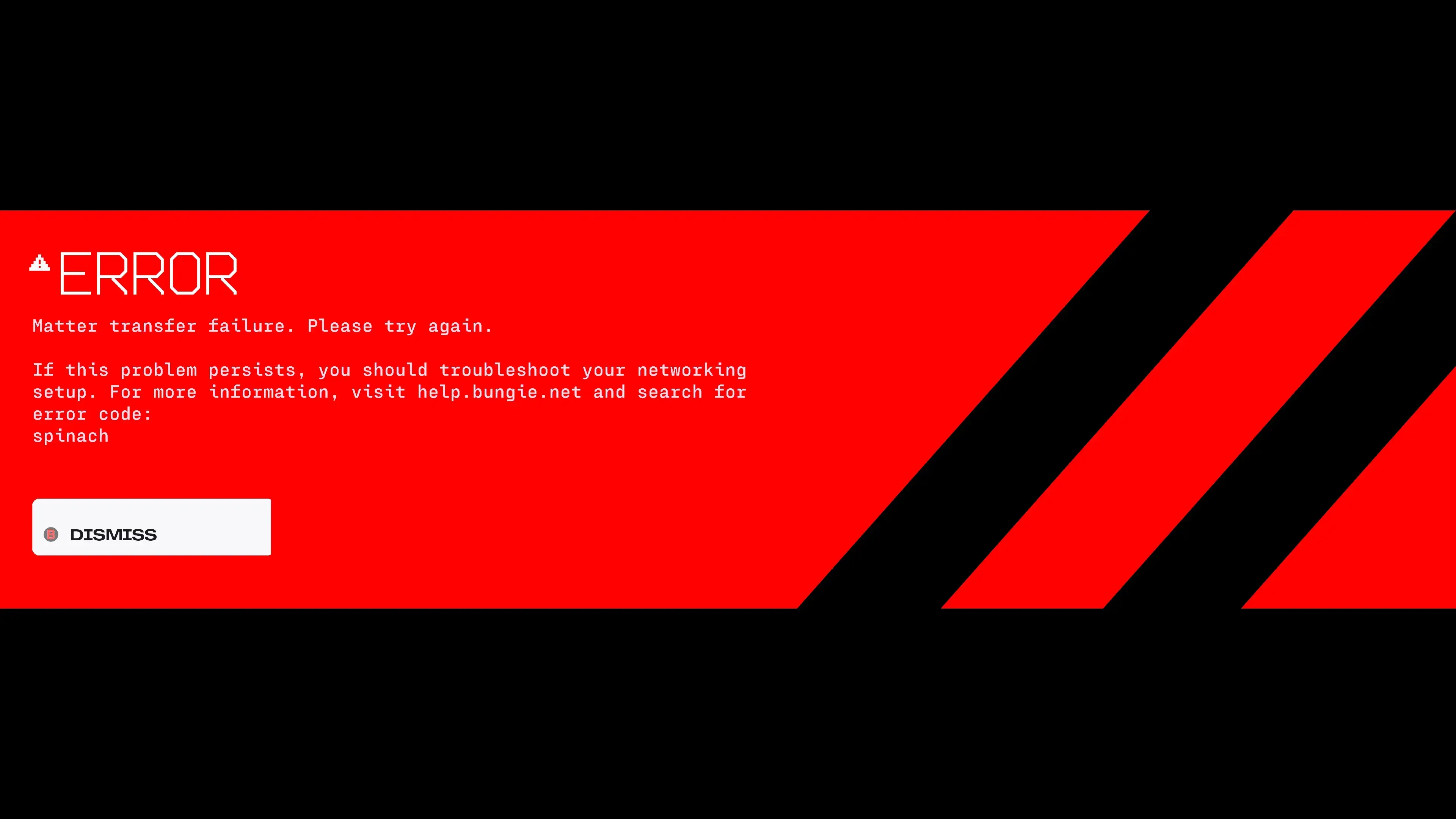
If you’ve lost a $4k sponsor kit because the game decided to crash mid-load, you’re not alone. Marathon’s launch has been plagued with crashes that delete your entire loadout. This guide covers every working fix, prevention methods, and what Bungie is doing about gear recovery.
Table of Contents
- Quick Fixes That Work Right Now
- Platform-Specific Crash Solutions
- Known Crash Triggers to Avoid
- Gear Recovery and Compensation Process
- Prevention Tips for Future Runs
- New Issues (April 2026): BSOD, Bubble Shield Crashes, PS5 Language Bug
- April 2026 Error Codes & Technical Issues
- April 2026 Patch History & Stability Fixes
Quick Fixes That Work Right Now
These solutions have been verified by hundreds of players on Reddit and the Bungie Help Forum. Try them in order.
Fix 1: Lower UI Refresh Rate (Most Effective)
Applies to: PC (All Hardware)
Multiple players report this fix reduces crashes from every 2-3 matches to once per session.
Steps:
- Open Marathon Settings
- Navigate to Display or Video settings
- Find UI Refresh Rate option
- Change from High to Medium or Low
- Restart the game
Player Report: “This fixed it from crashing as much after I turned it to medium. Only did it one time since I changed it and hasn’t crashed at all while playing on low.” - Reddit u/MarathonPlayer
Fix 2: Disable Discord Clipping
Applies to: PC
Discord’s clipping feature fights for hardware cursor control, causing instant CTD (Crash to Desktop).
Steps:
- Open Discord
- Click the Gear Icon (User Settings)
- Navigate to Clips tab
- Disable the “Enable Clipping” toggle
- Restart Marathon
Fix 3: Disable AMD Adrenalin Overlay
Applies to: PC (AMD Graphics Cards)
Opening the AMD overlay during a match causes instant crash with no error code.
Steps:
- Open AMD Adrenalin Software
- Go to Settings → General
- Disable In-Game Overlay
- Configure fan curves and monitoring before launching the game
- Do NOT press overlay hotkey during matches
Fix 4: Verify Game Files (Steam)
Applies to: PC (Steam Version)
Steps:
- Open Steam Library
- Right-click Marathon
- Select Properties
- Go to Installed Files tab
- Click Verify integrity of game files
- Wait for completion (5-10 minutes)
- Restart Steam and launch game
Fix 5: Reinstall BattlEye Anti-Cheat
Applies to: PC (All Versions)
BattlEye kernel conflicts cause Blue Screen of Death on some systems.
Steps:
- Navigate to
Marathon Installation Directory\_CommonRedist\BattlEye - Run
Install_BattlEye.batas Administrator - Restart your PC
- Launch Marathon
Platform-Specific Crash Solutions
PC (Nvidia Graphics Cards)
| Issue | Solution | Effectiveness |
|---|---|---|
| Crashes on loading screen | Roll back to driver 591.59 | High |
| Mouse input freezes | Disable Discord overlay | High |
| Crash when opening map | Lower UI refresh rate | High |
| Black screen in matchmaking | Server overload (wait 5-10 min) | Medium |
| Hard crash & full PC reboot on first launch | Launch game twice, or update to 1.0.6+ | High |
| BSOD (PAGE_FAULT_IN_NONPAGED_AREA) on close | Reinstall BattlEye, update to 1.0.6.1+ | High |
| PC shuts down without Windows shutdown screen | Check PSU wattage, limit GPU power | Medium |
Nvidia-Specific Steps:
- Open Nvidia Control Panel
- Set Power Management Mode to “Prefer Maximum Performance”
- Enable Smooth Motion in Nvidia App (if available)
- Set VSync to OFF in-game
- Use uncapped framerate
New Issue (April 2026): Multiple players report a hard crash and full PC reboot on the first launch of the day. Second launch works fine. This is linked to BattlEye initialization conflicts with certain motherboard chipsets. Update to Patch 1.0.6+ which addresses this, or simply launch the game twice.
Critical BSOD Issue: Closing Marathon causes a consistent kernel-level BSOD with error
PAGE_FAULT_IN_NONPAGED_AREA. This is caused by BattlEye driver conflicts with Windows 11 memory management. Reinstall BattlEye as administrator (Install_BattlEye.bat) and update to Patch 1.0.6.1+. Some users report this is resolved by disabling “Memory Integrity” in Windows Security → Device Security → Core Isolation Details.
PC (AMD Graphics Cards)
| Issue | Solution | Effectiveness |
|---|---|---|
| Instant crash on overlay | Disable AMD overlay completely | Critical |
| Crash every 3-5 games | Lower UI refresh rate + disable overlay | High |
| Driver timeout | Roll back to stable driver version | Medium |
AMD-Specific Warning:
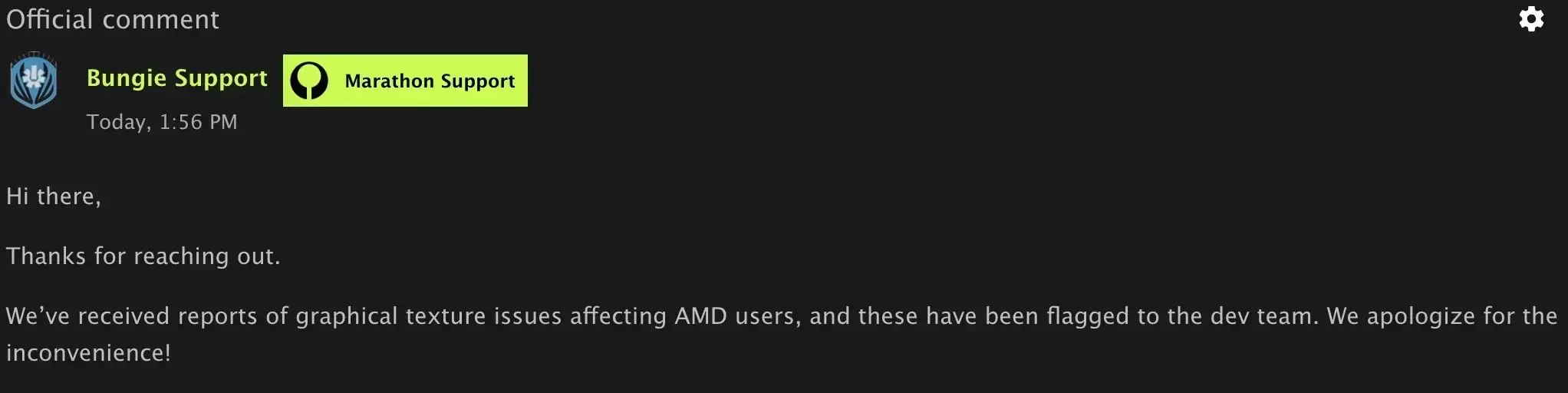
The AMD Adrenalin overlay causes instant flatline crashes with no error code. Do not use it until Bungie patches video memory hooking.
PS5
| Issue | Solution | Effectiveness |
|---|---|---|
| Voice chat not working | Reset audio settings, use optical output | Medium |
| Crash on loading | Rebuild database (Safe Mode) | Medium |
| Overheating crashes | Ensure proper ventilation, clean dust | High |
| CE-108255-1 crash on splash screen | Change system language to English (US) | Critical |
| Crash after Update 1.012 | Change language, rebuild database | High |
PS5 Safe Mode Steps:
- Turn off PS5 completely
- Hold power button for 7 seconds (two beeps)
- Connect controller via USB
- Select Clear Cache and Rebuild Database
- Select Rebuild Database
Critical PS5 Bug (April 2026): Update 1.012 introduced a crash on the splash screen with error code CE-108255-1. Bungie confirmed this affects PS5 users with their console system language set to Canadian French. If you’re experiencing this crash:
Fix: Go to Settings → System → Language and change to English (US) or another supported language. This is a confirmed localization bug. One user confirmed: “I changed the language to English and it’s work.”
If changing language doesn’t fix it, try rebuilding the PS5 database in Safe Mode or reinstalling the game.
Xbox Series X|S
| Issue | Solution | Effectiveness |
|---|---|---|
| Voice chat failure | Reset audio settings | Medium |
| Overheating shutdowns | Check ventilation, horizontal placement | High |
| Crash on loading | Clear persistent storage | Medium |
Xbox Cache Clear:
- Hold power button for 10 seconds
- Unplug power cable for 2 minutes
- Plug back in and restart
Known Crash Triggers to Avoid
Based on community reports from 500+ Reddit threads and Bungie Help Forum posts.
High-Risk Actions
| Action | Crash Rate | Workaround |
|---|---|---|
| Opening map during combat | 40% | Only open map in safe zones |
| Opening Steam overlay | 35% | Use in-game UI only |
| Opening inventory rapidly | 25% | Wait 2-3 seconds between tabs |
| Loading into Perimeter map | 30% | Try Dire Marsh instead |
| AMD overlay during match | 90% | DO NOT USE |
| Discord clipping active | 60% | Disable completely |
| Shooting bubble shield (team crash) | 80% | Avoid shooting shields until patched |
| First launch of the day | 50% | Launch twice, or update to 1.0.6+ |
| Closing the game | 30% | Reinstall BattlEye, update to 1.0.6.1+ |
Player Reports
“My squad and I have crashes about once or twice a session, always when we open the map or Steam overlay.” - Reddit
“I get crashes every 6-7 games when loading in. It asks if I want to reconnect but I just say no.” - Bungie Help Forum
“Happens at least 2 times a day. I lose really good and expensive kits because the game crashes.” - Bungie Help Forum
Map-Specific Issues
Perimeter (Beginner):
- Highest crash rate during loading
- South Relay loot spawn bugs
- Avoid if possible until patched
Dire Marsh:
- More stable than Perimeter
- Better PvP matchmaking
- Recommended for experienced players
Outpost:
- Limited data (newer map)
- Early reports suggest stable performance
Gear Recovery and Compensation Process
Current Bungie Policy
Bad news: There is no automated gear recovery system in Marathon as of March 2026.
When you crash:
- Your character is marked as “dead” in the match
- All equipped gear is lost
- Items in backpack are lost
- No automatic refund or restoration
Manual Compensation Request Process
While not guaranteed, you can submit a support ticket.
Steps:
- Go to Bungie Help Forum
- Navigate to Marathon Help → Bug Reports
- Create a new post with:
- Your Bungie ID (e.g., PlayerName#1234)
- Platform (PC/PS5/Xbox)
- Time and date of crash
- Map you were loading into
- List of lost items (if known)
- Any error codes or screenshots
Template:
Title: Gear Lost Due to Crash - [Your Bungie ID]

Platform: PC/PS5/Xbox
Bungie ID: YourName#1234
Date/Time: March 15, 2026, 3:45 PM EST
Map: Perimeter (loading screen crash)

Lost Items:
- [Weapon name with mods]
- [Armor/Shield]
- [Backpack contents]

Description: Game crashed during loading screen. Returned to menu with "dead" status. Lost all gear.

Attachments: [Screenshots if available]
Community Demands
Players are requesting:
- Crash report button in-game
- Match review system for crash deaths
- Automatic gear restoration for verified crashes
- AFK protection when crash occurs
“I would just like a temporary fix to be added to the game so we can report the match itself so you can see what was lost and return it to the affected player.” - Bungie Help Forum
What Bungie Has Said
The Marathon Development Team has acknowledged crash issues on Twitter:
- “We’ve seen reports of sporadic crashes and are investigating.”
- “Some great leads on crash causes, working on fixes.”
- “No ETA on gear recovery system.”
Prevention Tips for Future Runs
Before Each Session
Checklist:
- UI Refresh Rate set to Medium/Low
- Discord clipping disabled
- AMD/Nvidia overlay disabled
- Game files verified (weekly)
- Drivers updated (or rolled back if new)
- System temperatures checked
During Runs
Safe Practices:
- Don’t open map during combat - Find cover first
- Avoid Steam overlay - Use in-game UI
- Wait between menu transitions - 2-3 second delay
- Don’t spam inventory tabs - Navigate slowly
- Use smoke grenades when extracting - Reduces rush, less panic menu usage
Mouse Movement Trick
Some players report this prevents loading screen crashes:
“I don’t know if this is just coincidence, but every match I moved my mouse around during the loading screen it was fine.” - Reddit
Technique:
- During loading screen, move mouse in small circles
- Keep cursor active until match starts
- May prevent idle timeout crashes
Low-Cost Loot Runs
If crashes persist, minimize losses:
- Use free sponsor kit or cheap weapons
- Run map edges instead of hot zones
- Extract early with partial loot
- Repeat 3-4 times instead of one big run
- Focus on Unstable materials for faction upgrades
When to Stop Playing
If you experience:
- 3+ crashes in one session
- Blue Screen of Death
- Consistent loading screen failures
Take a break and wait for Bungie patches. Check:
Marathon - Complete Guide Hub
New Issues (April 2026): BSOD, Bubble Shield Crashes, PS5 Language Bug
This section covers crash types and issues discovered between March 31 and April 27, 2026, based on community reports from r/Marathon, Bungie Help Forum, and official patch notes.
Team Crash When Shooting Bubble Shield
Error description: When a player shoots a bubble shield (either their own or a teammate’s), the entire team crashes to desktop simultaneously. No error code displayed.
Root cause: Update 1.0.6 introduced a client-side bug where bubble shield projectile physics cause a network synchronization failure. When the shield is hit, the game attempts to recalculate shield state across all connected clients, triggering a crash on each player’s machine.
Solution:
Step 1: Update to Patch 1.0.6.1+
Bungie confirmed this issue and addressed it in the 1.0.6.1 hotfix. Ensure your game is fully updated.
Step 2: Avoid Shooting Bubble Shields (Temporary)
Until the patch is fully rolled out:
- Do not shoot bubble shields with weapons
- Use melee or abilities to destroy shields instead
- Communicate with your team to avoid accidental shield hits
Bungie Help Forum Report (April 15): “All 3 of our games crashed at the same time when someone shot a bubble shield. Pretty sure it wasn’t an internet connectivity issue nor a client-side problem.”
Hard Crash & Full PC Reboot on First Launch
Error description: Clicking “Play” in Steam causes the PC to hard crash and fully reboot. Second launch attempt works normally.
Root cause: BattlEye anti-cheat initialization conflict with certain motherboard chipsets and Windows 11 memory management. The first launch attempt fails to load BattlEye drivers properly, causing a kernel-level crash that triggers a full system reboot.
Solution:
Step 1: Update to Patch 1.0.6+
Bungie addressed this in the April 14 update. BattlEye initialization was reworked to prevent first-launch crashes.
Step 2: Reinstall BattlEye
- Navigate to
Marathon Installation Directory\_CommonRedist\BattlEye - Right-click
Install_BattlEye.bat→ Run as Administrator - Restart your PC
- Launch Marathon
Step 3: Disable Memory Integrity (Windows 11)
If the issue persists:
- Open Windows Security → Device Security → Core Isolation Details
- Disable “Memory Integrity”
- Restart PC
- Launch Marathon
Community Report (April 5): “Every time I fire up the game on Steam, I will get a hard crash and full PC reboot the first time I do so. On second launch, it’s usually fine.” - Bungie Help Forum
Kernel-Level BSOD When Closing Marathon
Error description: Closing the game (returning to main menu or exiting to desktop) consistently triggers a Blue Screen of Death with error PAGE_FAULT_IN_NONPAGED_AREA.
Root cause: BattlEye kernel-level anti-cheat driver fails to unload properly when the game closes, causing a memory access violation in non-paged kernel memory. This is a known conflict between BattlEye and Windows 11’s memory management system.
Solution:
Step 1: Update to Patch 1.0.6.1
The April 21 hotfix includes BattlEye driver updates that address the unload sequence.
Step 2: Reinstall BattlEye Clean
- Navigate to
C:\Program Files (x86)\Steam\steamapps\common\Marathon\BattlEye\ - Run
Uninstall_BattlEye.batas Administrator - Restart PC
- Run
Install_BattlEye.batas Administrator - Restart PC again
- Launch Marathon
Step 3: Disable Conflicting Software
Close the following before launching Marathon:
- MSI Afterburner / RivaTuner
- EVGA Precision
- Any overlay software (Discord, Steam, GeForce Experience)
- Screen recording software (OBS, NVIDIA ShadowPlay)
Community Report (April 2): “As the title says, I have consistently been getting a BSOD with the error code: PAGE_FAULT_IN_NONPAGED_AREA, where most of the time it mentions that the offending process is BattlEye.” - Bungie Help Forum
PC Shuts Down Without Warning (No Windows Shutdown Screen)
Error description: Playing Marathon causes the PC to instantly power off without displaying the Windows “shutting down” screen. No crash log, no error message.
Root cause: GPU power supply overload. Marathon’s rendering engine causes sudden GPU power draw spikes that exceed PSU capacity, triggering hardware-level over-current protection. This is not a software crash—it’s a hardware safety shutdown.
Affected Configurations:
- NVIDIA RTX 2080 Super + AMD Ryzen 5 3600
- Systems with underpowered PSUs (<650W for RTX 20-series)
- Systems with degraded PSU capacitors
Solution:
Step 1: Check PSU Wattage
| GPU | Minimum PSU | Recommended PSU |
|---|---|---|
| RTX 2060 | 500W | 550W |
| RTX 2070 / 2080 | 650W | 750W |
| RTX 3060 | 550W | 650W |
| RTX 3070 / 3080 | 750W | 850W |
| RTX 4070 / 4080 | 850W | 1000W |
Step 2: Limit GPU Power
- Install MSI Afterburner or GPU manufacturer utility
- Set power limit to 80-90%
- Apply and restart game
- Monitor for stability
Step 3: Monitor Temperatures
- GPU temp > 85°C = thermal throttling risk
- CPU temp > 90°C = thermal throttling risk
- Use HWMonitor or MSI Afterburner OSD to track temps
Community Report (April 16): “Game makes my PC shut off, but does not display window’s ‘shutting down’ screen. My OS is Windows 11. Nvidia 2080 super. AMD Ryzen 3600. Im not seeing any error codes after the shut down.” - Bungie Help Forum
Game Crashes After 1-2 Minutes in Lobby
Error description: Game launches successfully, reaches the lobby, then crashes to desktop after 1-2 minutes of being AFK or attempting to queue.
Root cause: Memory leak in lobby rendering pipeline or network timeout during matchmaking initialization. The game fails to maintain connection to the lobby server, triggering a crash.
Solution:
Step 1: Update to Patch 1.0.6.1
This patch addresses lobby stability and matchmaking connection issues.
Step 2: Verify Game Files
- Steam → Library → Right-click Marathon → Properties
- Installed Files → Verify integrity of game files
- Wait for completion and relaunch
Step 3: Disable Background Apps
Close bandwidth-heavy applications:
- Steam (other games)
- Discord (disable hardware acceleration)
- Web browsers
- Download managers
Community Report (April 23): “The game crashes to desktop after 2-3 minutes of being afk in lobby. When im trying to get into the game it crashes faster (from 1 minute).” - Bungie Help Forum
Performance Degradation: Real-Time Item Icon Rendering
Error description: Game performance drops significantly when viewing the Vault, Armory, or inventory with many items. Frame rate drops to slideshow levels, making navigation difficult.
Root cause: Marathon renders item icons in real-time instead of using pre-cached textures. When viewing gear-heavy tabs (crew vaults, large armories), the game attempts to render hundreds of unique item icons simultaneously, causing severe GPU strain.
Solution:
Step 1: Update to Patch 1.0.5.3+
Bungie fixed the Armory crash issue and improved item tab performance in this update.
Step 2: Reduce Item Load
- Avoid viewing crew vaults with 100+ items
- Sort items by category to reduce visible count
- Use filters to narrow down visible items
Step 3: Lower Graphics Settings Temporarily
When navigating heavy inventory screens:
- Lower UI refresh rate to Low
- Reduce shadow quality
- Disable ray tracing if enabled
Community Report (April 10): “Marathon performance is getting nuked by realtime render of the item icons. Go try it yourself: go gear heavy with a crew or on a free kit alone.” - Reddit r/Marathon
PS5 CE-108255-1 Crash (Canadian French Language Bug)
Error description: PS5 crashes with error code CE-108255-1 when pressing any button on the Marathon splash screen. Game never reaches main menu.
Root cause: Localization file corruption when PS5 system language is set to Canadian French. The game fails to load French Canadian text assets, causing a system-level crash.
Solution:
Step 1: Change PS5 System Language
- Go to Settings → System → Language
- Change to English (US) or another supported language
- Restart PS5
- Launch Marathon
Step 2: Rebuild Database (If Language Change Doesn’t Work)
- Turn off PS5 completely
- Hold power button for 7 seconds (two beeps)
- Connect controller via USB
- Select Rebuild Database
- Launch Marathon
Bungie Official Statement: “We have observed reports from PS5 players who had their console system language set to Canadian French, which caused crashes with error CE-108255-1. If this happens to be your case, you might want to try changing your PS5 language to English (US) or another language as a temporary workaround.” - Bungie Help Forum
Drone Wing / Destroyed Wing Stuck Bug
Error description: Players can get locked inside Drone Wing or Destroyed Wing with no way to exit. The exit mechanism (breaking switches) can bug out, trapping players.
Root cause: Map geometry and switch mechanic bugs introduced in Update 1.0.6. Breaking the required switches doesn’t always trigger the exit sequence properly.
Solution:
Step 1: Break All 5 Switches
Ensure all 5 switches are visibly broken (spark/effect confirmation). Sometimes one switch appears broken but isn’t registered.
Step 2: Use Exfil Beacon
If stuck:
- Open inventory
- Use Exfil Beacon (if available)
- Extract immediately
Step 3: Force Quit (Last Resort)
If no exfil option:
- Press PS button / ESC key
- Quit to main menu
- Rejoin (gear will be lost)
Community Report (April 8): “HUGE BUG: The game can bug out and you can get locked inside of Drone wing with no way out.” - Reddit r/Marathon
April 2026 Error Codes & Technical Issues
Since launch in March 2026, Marathon has had numerous PC-specific error codes and technical problems. Here’s a comprehensive breakdown of every known issue and how to fix them.
Official Error Codes List
Bungie uses animal-themed error codes to identify specific issues. Here’s what each means:
Error Code BASIL
Meaning: General connection failure to Marathon servers.
Fixes:
- Check Bungie Server Status
- Restart your router
- Switch to wired Ethernet connection
- Disable VPN if active
- Add Marathon as firewall exception in Windows Defender
Source: G2A News, GamesRadar
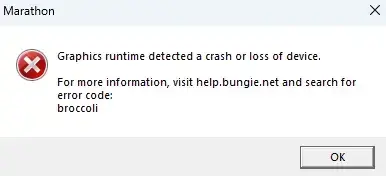
Error Code BROCCOLI
Meaning: Connection lost during matchmaking or mid-run.
Fixes:
- Wait 2-3 minutes before requeuing
- Check for ongoing server maintenance
- Verify your internet connection is stable
- If using WiFi, move closer to router or switch to Ethernet
Source: G2A News
Error Code CENTIPEDE
Meaning: Failed to join crew or session full.
Fixes:
- Try creating a new crew instead of joining
- Wait for current match to complete
- Check if friend’s session is already full (max 3 players)
Source: GamesRadar
Error Code GINGER
Meaning: Authentication failure with platform account.
Fixes:
- Sign out and back into your Steam/PSN/Xbox account
- Verify PlayStation Plus or Xbox Game Pass subscription is active
- Restart the game client
- Check platform service status (PSN, Xbox Live, Steam)
Source: GamesRadar
Error Code MARMOT
Meaning: Corrupt game files detected.
Fixes:
- Steam: Library → Right-click Marathon → Properties → Installed Files → Verify integrity
- Epic: Library → three dots → Verify
- If verification fails, fully uninstall and reinstall Marathon
- Ensure 60GB+ free space on installation drive
Official Bungie Guide: Error Code MARMOT Support Article
Source: GamesRadar, Bungie Help
Error Code OREGANO
Meaning: Server maintenance or scheduled downtime.
Fixes:
- Check Bungie Help Forum for maintenance announcements
- Follow @MarathonDevs on Twitter
- Wait for maintenance to complete (typically 1-4 hours)
Source: G2A News
Error Code STINGRAY
Meaning: Platform account issue or platform service outage.
Causes:
- Not signed into PlayStation Network, Xbox Live, or Steam
- PlayStation Plus or Xbox Game Pass subscription expired
- Platform service undergoing maintenance
Fixes:
- Verify you’re signed into your platform account
- Check PSN/Xbox Live/Steam service status
- Ensure PlayStation Plus or Xbox Game Pass subscription is active (required for online play)
- Restart platform and game
Source: GamesRadar
Error Code TAPIR
Meaning: Server maintenance or widespread outage.
Fixes:
- Check Bungie server status page
- Look for maintenance announcements on official channels
- If no maintenance scheduled, post on Marathon Help Forum - may be widespread issue
Source: GamesRadar
Error Code WEASEL
Meaning: General networking issue.
Causes:
- ISP problems
- Logging into Marathon on multiple platforms simultaneously
- Unstable internet connection
Fixes:
- Restart router and modem
- Switch to wired connection
- Don’t log into multiple platforms at same time
- Contact ISP if issue persists
- Wait if issue is on ISP’s end
Source: GamesRadar
Error Code GRAPEFRUIT (Post-Update 1.0.5)
Meaning: Crash occurring after March 17, 2026 update.
Reported Symptoms:
- Consistent crashing during loading screens
- Crash when opening inventory or map
- Error appears after update installation
Fixes:
- Verify game files immediately after update
- Clear shader cache (NVIDIA Control Panel or AMD Adrenalin)
- Roll back to previous driver version if crash started after driver update
- Post details on Bungie Help Forum
Source: Bungie Help Forum
New Error Codes (April 2026)
The following error codes were reported between March 31 and April 27, 2026:
Error Code PLUM (PC Only)
Meaning: BattlEye anti-cheat conflict. Occurs when certain games are played before Marathon, causing BattlEye to fail initialization.
Symptoms:
- Error popup: “Error Code PLUM”
- Game fails to launch past BattlEye screen
- Only occurs on PC
Fixes:
- Restart your PC — This is the most reliable fix
- If restart doesn’t work:
- Navigate to
Marathon Installation Directory\_CommonRedist\BattlEye - Run
Install_BattlEye.batas Administrator - Restart PC and launch Marathon
- Navigate to
- Avoid playing other BattlEye-protected games immediately before Marathon
Note: PLUM is a BattlEye-specific error that can occur after game updates or maintenance. Check @BungieHelp on Twitter for server status.
Source: Bungie Help Forum
Error Code NIGHTINGALE
Meaning: Failed to download configuration files from Bungie’s CDN (Content Delivery Network).
Symptoms:
- Stuck on “Checking for Updates” loading screen
- Game never reaches main menu
- Most common on Xbox
Fixes:
- Check Bungie server status for ongoing maintenance
- Restart your router/modem
- On Xbox: Clear persistent storage
- Settings → System → Storage → Clear Persistent Storage
- Reinstall Marathon if issue persists
Source: GamesRadar
Error Code SALAK
Meaning: Antivirus interference. Most commonly caused by Kaspersky on PC. Your security software is blocking Marathon from retrieving its configuration files.
Fixes:
- Open your antivirus software (Kaspersky, Norton, etc.)
- Add Marathon as an exception/exclusion:
- Add game folder:
Steam\steamapps\common\Marathon - Add process:
Marathon.exe - Add BattlEye folder:
Marathon\BattlEye
- Add game folder:
- Disable real-time scanning for Marathon
- Restart PC and launch game
Source: GamesRadar
Error Code PAPRIKA
Meaning: General connection error. Shares symptoms with W:8 errors. Usually occurs during peak hours when server traffic is high.
Fixes:
- Restart the game
- Check your network connection
- If during peak hours, wait 5-10 minutes and retry
- Switch to wired Ethernet if on WiFi
Source: GamesRadar
Error Code CURRANT
Meaning: Network connectivity issue between your machine and Bungie servers. Despite the error, your internet connection is usually fine—the issue is server-side overload or client network configuration.
Symptoms:
- Cannot connect to servers
- Stuck on login screen
- Other games/apps work fine
Fixes:
- Restart router and modem
- Switch to wired Ethernet connection
- Flush DNS: Open CMD as admin →
ipconfig /flushdns - Change DNS to Google (8.8.8.8 / 8.8.4.4)
- Disable IPv6 on your network adapter
- Use a VPN as a temporary workaround (some users report this routes around the issue)
Source: GamesRadar, Bungie Help Forum
Error Code W:8:00002EE2
Meaning: Network timeout error. Common with Starlink and certain ISP configurations.
Fixes:
- Power cycle your router/modem
- Switch to wired Ethernet
- Disable IPv6
- Change DNS to Google (8.8.8.8 / 8.8.4.4)
- Use a VPN as a temporary workaround
- Flush DNS:
ipconfig /flushdnsin CMD (admin)
Starlink Users: Multiple Starlink users report this error consistently. Using a VPN routes traffic through a different source and bypasses the issue. Bungie is investigating the root cause.
Source: Bungie Help Forum
Error Code CE-108255-1 (PS5 Only)
Meaning: PS5 system crash caused by Canadian French language localization bug.
Fix: Change PS5 system language to English (US): Settings → System → Language → English (US).
Source: Bungie Help Forum
Error Code W:8:80090305
Meaning: Server connection timeout. Your request to establish a connection exceeded the server’s time limit. Common during peak hours.
Fixes:
- Restart the Marathon application to generate a new authentication token
- Wait 5-10 minutes and retry
- Check Bungie server status for ongoing issues
Source: GamesRadar
Error Code WEAVE
Meaning: Network configuration issue. Related to UPnP and NAT type problems.
Fixes:
- Enable UPnP on your router
- If UPnP is already enabled, disable and re-enable it
- Set NAT type to Open (router settings)
- Restart router and game
Source: GamesRadar
April 2026 Patch History & Stability Fixes
What Happens When You Disconnect?
If Marathon crashes or you get disconnected:
- Your character stays in the match but becomes AFK
- You’re vulnerable to UESC and enemy players
- If you die while disconnected, all gear is lost
- If you reconnect in time, you can resume control and finish the run
Bungie’s Policy on Server-Side Disconnections:
“If you get disconnected due to a server error or something else on Bungie’s end, the studio says that reconnecting to a match should work, and if your Runner dies due to the disconnection, you may be eligible for compensation.” - GamesRadar
However: Compensation is not automatic and requires manual support ticket submission.
Update 1.0.5.2 (March 31, 2026)
Stability Fixes:
- Fixed various client crash issues
- Improved server stability
- Addressed memory leak issues in lobby
Source: Bungie.net
Update 1.0.5.3 (April 7, 2026)
Stability Fixes:
- Fixed a crash that could occur when opening the Armory — This was a major issue causing CTD when accessing the Armory tab
- Fixed low framerate on Armory tabs with many items — Real-time icon rendering performance improved
- Fixed an issue causing the Vault and Armory to sometimes appear to be empty — Items were visible again after this fix
- Fixed an issue causing the Armory item refreshes and free daily item timers to not tick while in-game — Timers now progress correctly
- Fixed a Cryo Archive extraction issue — Exfil point now spawns correctly
- Fixed Thief slide cancel movement exploit — Additional movement exploit patches
Combat Changes:
- Nerfed knife lunging distance and melee damage against enemy runners
- Bubble Shield adjustments to better align with intended gameplay
Update 1.0.6 (April 14, 2026) — Mid-Season Update
Major Stability Fixes:
- Fixed Cryo Archive Vault 6 geometry issue that could send runners plummeting to their deaths
- Fixed Dire Marsh Anomalous waypoint activity appearing below the map when inactive
- Fixed Outpost Pinwheel area issues:
- Tox Warden encounter reworked to reduce hiding spots
- Tox plants now more reactive to nearby players
- Fixed final exfiltration point spawning in the same location every time
- Fixed Perimeter evacuation countdown timer issue
- Fixed Cryo Archive out-of-bounds漏洞
- Fixed Vaulted gear erroneously dropping from strike-unique loot lists
New Features:
- C.A.R.R.I. Protocol — New reward system for solo and crew players
- Mercy Kit — Revive enemy players (new “Nice Play” system)
- Signal Jammers now purchasable from Armory
- 5 new Implant perks added
- Trace Rifle-focused armor mods added
Map Fixes:
- Cryo Archive: Vault 6 death geometry fixed, exfil issues resolved
- Dire Marsh: Anomalous waypoint corrected
- Outpost: Pinwheel Tox Warden reworked, exfil point randomized
Source: Bungie.net Official, IGN, Destructoid
Update 1.0.6.1 (April 21, 2026) — Hotfix
Stability Fixes:
- Fixed radial menu responsiveness — No longer accidentally throws wrong items (frag grenades instead of bubble shields)
- Fixed regional matchmaking issue that was routing players into wrong/rougher lobbies
- Fixed Perimeter evacuation countdown timer (additional fix)
- Fixed Cryo Archive out-of-bounds漏洞 (additional fix)
- BattlEye driver updates addressing BSOD on close issue
Item Economy:
- Increased daily stock limits for Enhanced (green) and Deluxe (blue) Sponsored Kits
- Items now stack up to 6 in a single inventory slot (Depleted Patch Kits, Depleted Shield Charges)
Combat Hotfix:
- WSTR shotgun nerf — No longer downs blue+ shielded targets with two shots at short range
Known Issues Remaining (As of April 27, 2026)
Based on community reports and Bungie acknowledgments:
| Issue | Status | Workaround |
|---|---|---|
| Intel Arc GPU compatibility | Under investigation | No confirmed fix |
| PLUM error (BattlEye conflict) | Known issue | Restart PC, reinstall BattlEye |
| Map opening crashes | Partially fixed (1.0.5.3) | Lower UI refresh rate |
| Loading screen crashes | Ongoing | Move mouse during loading |
| BattlEye BSOD on Windows 11 | Partially fixed (1.0.6.1) | Reinstall BattlEye, disable Memory Integrity |
| Gear recovery system | Not implemented | Submit support ticket |
| IME keyboard crashes | Fixed (1.0.5) | Use Windows built-in IME |
| PS5 CE-108255-1 (Canadian French) | Workaround available | Change language to English (US) |
| Item icon real-time render lag | Partially fixed (1.0.5.3) | Reduce item load, lower settings |
| Drone wing / Destroyed wing stuck | Known bug | Break all 5 switches, use exfil beacon |
| Bubble shield team crash | Fixed (1.0.6.1) | Update to latest patch |
| First launch PC reboot | Fixed (1.0.6) | Update to latest patch |
| Regional matchmaking | Fixed (1.0.6.1) | Update to latest patch |
| Cheater detection | Ongoing | Use in-game report system |
Source: Bungie Help Forum, Bungie.net, Reddit r/Marathon
Advanced PC Troubleshooting (March 2026)
BattlEye Anti-Cheat Issues
Marathon uses BattlEye kernel-level anti-cheat, which causes several PC-specific issues:
Driver Load Error (1275)
Cause: Windows 11 Hardware-enforced Stack Protection blocks BattlEye.
Fix:
- Open Windows Security → Device Security → Core Isolation Details
- Disable “Memory Integrity” or “Hardware-enforced Stack Protection”
- Restart PC
- Launch Marathon
Warning: This reduces system security. Re-enable after playing if concerned.
Source: XMODhub
BattlEye Initialization Failure
Fix:
- Navigate to
C:\Program Files (x86)\Steam\steamapps\common\Marathon\BattlEye\ - Run
Install_BattlEye.batas Administrator - Restart PC
- Whitelist BattlEye in antivirus software
Source: XMODhub
Black Screen with Audio
Cause: Server overload during peak hours (especially Server Slam beta period).
Fix:
- Wait 5-10 minutes in matchmaking queue
- Check server status for ongoing issues
- Try launching during off-peak hours
- Restart game client
Source: XMODhub
Input Lag and Mouse Delay
Official Bungie Fixes:
- Use display capture instead of game window capture (for streamers)
- Disable Steam Overlay: Steam → Settings → In Game → uncheck “Enable Steam Overlay”
- Close screen sharing, screen capture, or screen measurement tools
- Delete
CVARS.xmlfile to regenerate fresh config:- Location:
Documents\My Games\Marathon\ - Game will create new file on next launch
- Location:
Source: Hone.gg
Network Lag vs. Performance Stutter
Bungie’s Official Distinction:
| Symptom | Type | Fix |
|---|---|---|
| Rubberbanding, delayed hits | Network Lag | UPnP, wired connection, close bandwidth apps |
| Frame time spikes, slideshow | Performance | Close background apps, update drivers |
| Mouse delay, menu lag | Input Lag | Disable overlays, delete CVARS.xml |
UPnP Requirement: If more than one device plays Marathon on same network, UPnP must be enabled. Port forwarding will NOT work for multiple instances.
Source: Hone.gg
Linux / Steam Deck Compatibility
Official Status: NOT SUPPORTED
Reason: BattlEye kernel-level anti-cheat does not support Proton/Linux.
Source: Bungie.net System Requirements
PC System Requirements (Updated March 2026)
Minimum (1080p / 30 FPS / Low Settings)
| Component | Requirement |
|---|---|
| OS | Windows 10 64-bit (latest Service Pack) |
| Processor | Intel Core i5-6600 / AMD Ryzen 5 2600 |
| Memory | 8 GB RAM |
| Graphics | NVIDIA GTX 1050 Ti (4 GB) / AMD RX 5500 XT (4 GB) / Intel Arc A580 (8 GB, ReBAR on) |
| DirectX | Version 12 |
| Network | Broadband Internet Connection (Required) |
| Storage | 60 GB available space |
| Anti-Cheat | BattlEye (Kernel-Level) – Windows 10/11 Only |
Recommended (1080p / 60 FPS / High Settings)
| Component | Requirement |
|---|---|
| OS | Windows 11 64-bit |
| Processor | Intel Core i7-8700K / AMD Ryzen 7 3700X |
| Memory | 16 GB RAM |
| Graphics | NVIDIA RTX 2060 (6 GB) / AMD RX 5700 XT (8 GB) / Intel Arc A770 (16 GB, ReBAR on) |
| DirectX | Version 12 |
| Network | Stable Connection with Low Packet Loss |
| Storage | SSD recommended for faster zone loading |
Important Notes:
- Persistent online connection required (cannot play offline)
- Authentication happens every launch
- Intel Arc requires Resizable BAR enabled in BIOS
Source: Bungie.net
Marathon Database
Looking for a full breakdown of every weapon, runner, core, implant, mod, and item? Check out the Marathon Database — a complete interactive reference with filters and hover details for all in-game content.
Frequently Asked Questions
Why does Marathon keep crashing on my PC?
Most crashes are caused by UI refresh rate conflicts, AMD overlay interference, BattlEye kernel issues, or NVIDIA driver conflicts. Lower your UI refresh rate to Medium, disable AMD/Discord overlays, verify game files, and consider rolling back to NVIDIA driver 591.59 if on 596.21+.
Can I get my lost gear back after a crash?
Bungie has no automated gear recovery system. You can submit a support ticket through the Help Forum, but compensation is not guaranteed. Bungie added a "Nice Play" report system in Update 1.0.6 for positive behavior, but crash compensation still requires manual submission.
Does opening the map cause crashes in Marathon?
Yes, many players report crashes when opening the map or inventory. Lowering UI refresh rate and avoiding Steam overlay reduces this significantly. Update 1.0.5.3 fixed the Armory crash issue, but map crashes during combat still occur at ~40% rate.
What hardware causes the most Marathon crashes?
AMD graphics cards with overlay enabled, systems with Discord clipping active, and newer Nvidia drivers (591.59+). PS5 users with Canadian French language setting experience CE-108255-1 crashes. Rolling back drivers, disabling overlays, or changing PS5 language to English (US) helps.
Why does my PC BSOD when closing Marathon?
A known kernel-level BSOD (PAGE_FAULT_IN_NONPAGED_AREA) occurs when closing the game, caused by BattlEye anti-cheat driver conflicts. Reinstall BattlEye as administrator, update to the latest game patch (1.0.6.1+), and ensure no conflicting overlay software is running.
Why does shooting a bubble shield crash my whole team?
Update 1.0.6 introduced a bug where shooting a bubble shield causes all team members to crash to desktop. Bungie confirmed this is a client-side issue, not network-related. Update to 1.0.6.1+ which addresses this, or avoid shooting bubble shields until patched.
How to fix PS5 CE-108255-1 crash on Marathon?
This crash occurs specifically when PS5 system language is set to Canadian French. Change your PS5 language to English (US) or another supported language Settings → System → Language → English (US). This is a confirmed localization bug tracked by Bungie.
About the author

Editor-in-Chief
Founder and Editor-in-Chief of gameguidesbox.com, began surfing the web in the late 19th century. Passionate about movies, coffee, gaming, and life itself. Favorite games include Titanfall 2, Baldur's Gate 3, Metro, PUBG, and CS2.
You may also like
Marathon PvP Not Spawning? Developer Response + How to Find More Fights
Tired of running solo with no PvP action? Bungie finally responded to the 'PvP is infrequent' complaints. Learn which maps actually spawn players and how to force more encounters.
Marathon Ranked Mode Guide: Release Date, Requirements, Rewards & How It Works
Ranked mode drops March 21 in Marathon. We break down unlock requirements, gear ante rules, all 6 rank tiers, weekend-only schedule, and exclusive rewards you can't miss.
Marathon Beginner Guide: 7 Essential Tips to Avoid 80% of Early Mistakes
New to Marathon? Don't waste runs learning the hard way. These 7 essential tips cover heat management, knife combat, loot priority, and extraction planning that every beginner needs to know.
Comments